视频转音频或 GIF:只留声音,或者做动图
用 ffmpeg 从视频里抽出 MP3,或截一段做成 GIF。支持只转声音、只做动图,也能两个一起出。结果写到 out/,原视频不动。
本页目录
30 秒速查
- 先确认
ffmpeg -version能跑- 只要声音:
node resources/video-to-audio-gif/extract.mjs input/demo.mp4 --audio- 只要动图:把
--audio换成--gif --start 1 --duration 3- 两个都要:
--audio --gif一起加- 输出在
input/out/,原视频不动
这篇教程解决什么问题
一条三分钟的视频,可能只想要里面的背景音乐,或者只想要一个三秒动图做预览。打开剪辑软件、导出、再压缩,为了一件小事装一整套工具。
这篇用 ffmpeg 两条命令解决:抽音轨成 MP3,或者截一段做成 GIF。都能在终端里跑,原视频只读。
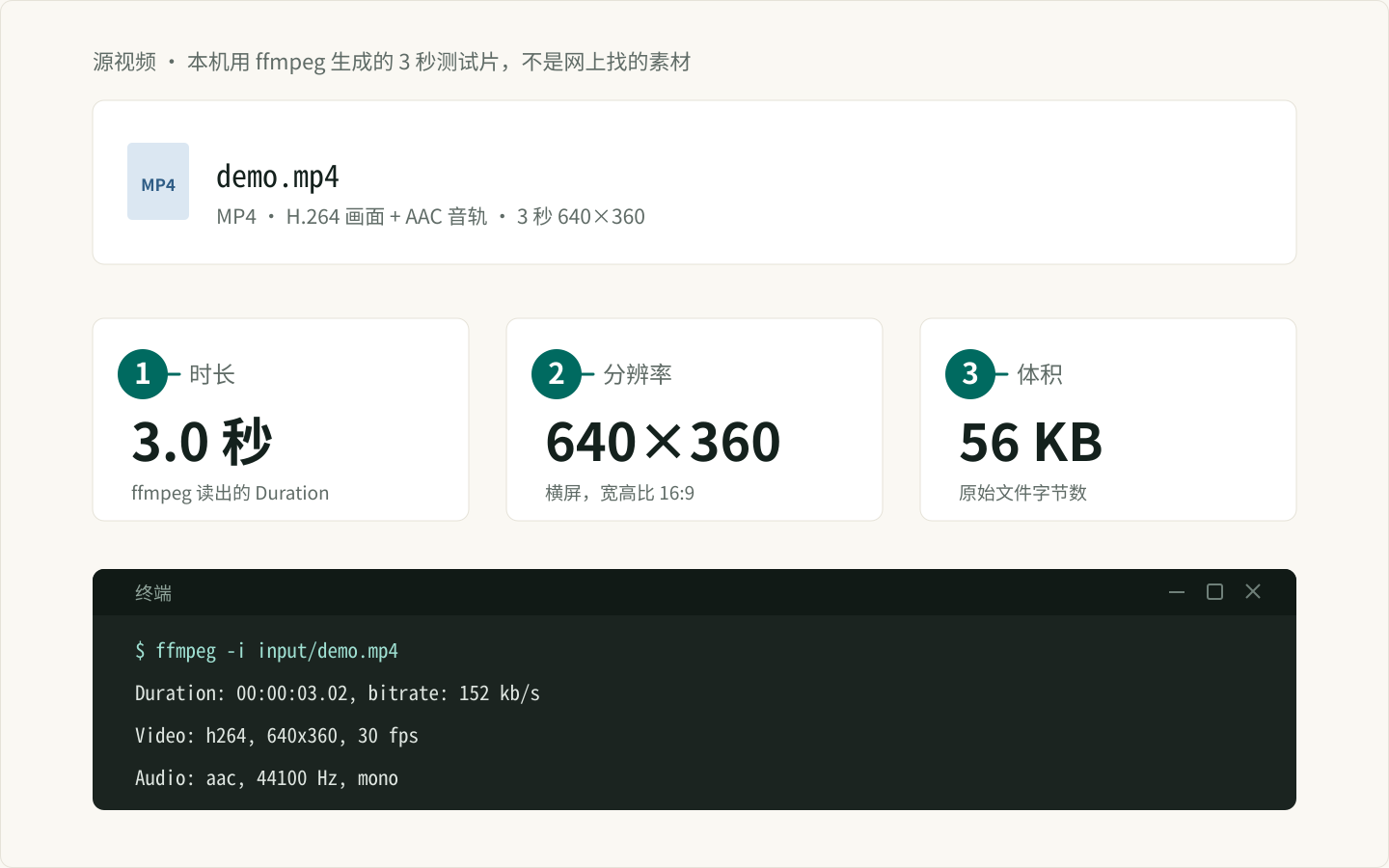
装 ffmpeg
macOS:
brew install ffmpegWindows:
winget install Gyan.FFmpegUbuntu 或 Debian:
sudo apt install ffmpeg装完确认:
ffmpeg -version如果提示「不是内部或外部命令」,先看ffmpeg PATH 排错,不用急着重装。
建两个文件
在 resources/video-to-audio-gif/ 下放两个文件:core.mjs 负责拼参数和调用 ffmpeg;extract.mjs 负责读参数、打印结果。
video-to-audio-gif/
├── core.mjs
└── extract.mjs
写核心模块
保存为 resources/video-to-audio-gif/core.mjs:
import { execFile } from "node:child_process";
import { mkdir, rm, stat } from "node:fs/promises";
import path from "node:path";
import { promisify } from "node:util";

const run = promisify(execFile);
const EXEC = { maxBuffer: 20 * 1024 * 1024 };

export function resolveFfmpeg(explicit) {
  return explicit || process.env.FFMPEG_PATH || "ffmpeg";
}

export function buildAudioArgs(input, output) {
  return ["-y", "-i", input, "-vn", "-c:a", "libmp3lame", "-q:a", "2",
    "-map_metadata", "-1", output];
}

export function buildGifArgs({
  input,
  output,
  palette,
  start,
  duration,
  fps = 12,
  width = 480,
}) {
  const seek = [];
  if (start) seek.push("-ss", String(start));
  if (duration) seek.push("-t", String(duration));

  const filter = `fps=${fps},scale=${width}:-1:flags=lanczos`;
  return {
    palette: [
      "-y", ...seek, "-i", input,
      "-vf", `${filter},palettegen=stats_mode=diff`,
      "-update", "1", palette,
    ],
    render: [
      "-y", ...seek, "-i", input, "-i", palette,
      "-lavfi", `${filter}[x];[x][1:v]paletteuse=dither=bayer:bayer_scale=3`,
      "-loop", "0", output,
    ],
  };
}

export async function probeMedia(input, { ffmpeg } = {}) {
  let info = "";
  try {
    await run(resolveFfmpeg(ffmpeg), ["-hide_banner", "-i", input]);
  } catch (error) {
    if (error.code === "ENOENT") {
      throw new Error("找不到 ffmpeg。先装 ffmpeg,或设置 FFMPEG_PATH。");
    }
    info = error.stderr ?? "";
  }

  const duration = /Duration:\s*(\d+):(\d{2}):(\d{2}(?:\.\d+)?)/.exec(info);
  if (!duration) throw new Error(`读不出视频信息:${input}`);

  const video = /Video:.*?,\s*(\d{2,5})x(\d{2,5})/.exec(info);
  return {
    seconds: Number(duration[1]) * 3600 + Number(duration[2]) * 60 + Number(duration[3]),
    width: video ? Number(video[1]) : null,
    height: video ? Number(video[2]) : null,
    hasAudio: /Audio:/.test(info),
  };
}

export async function extractAudio({ input, output, ffmpeg } = {}) {
  await mkdir(path.dirname(output), { recursive: true });
  const media = await probeMedia(input, { ffmpeg });
  await run(resolveFfmpeg(ffmpeg), buildAudioArgs(input, output), EXEC);
  return { output, bytes: (await stat(output)).size, media };
}

export async function extractGif({
  input,
  output,
  start,
  duration,
  fps = 12,
  width = 480,
  ffmpeg,
} = {}) {
  await mkdir(path.dirname(output), { recursive: true });
  const palette = path.join(path.dirname(output), `.palette-${process.pid}-${Date.now()}.png`);
  const args = buildGifArgs({ input, output, palette, start, duration, fps, width });

  try {
    await run(resolveFfmpeg(ffmpeg), args.palette, EXEC);
    await run(resolveFfmpeg(ffmpeg), args.render, EXEC);
  } finally {
    await rm(palette, { force: true });
  }

  return { output, bytes: (await stat(output)).size };
}
几个参数值得单独说:
-vn:不要视频流,只留音频;-q:a 2:MP3 可变码率,大约 190 kbps,人声和音乐都够用;-map_metadata -1:去掉原视频的标题、作者等元数据;palettegen+paletteuse:GIF 只有 256 色,先生成专属调色板再套用,比直接转颜色干净得多。
写命令入口
保存为 resources/video-to-audio-gif/extract.mjs:
import path from "node:path";
import { pathToFileURL } from "node:url";
import { parseArgs } from "node:util";

import { extractAudio, extractGif, probeMedia, resolveFfmpeg } from "./core.mjs";

function kb(bytes) {
  return Math.max(1, Math.round(bytes / 1024)) + " KB";
}

function display(file) {
  const relative = path.relative(process.cwd(), file);
  return relative.startsWith("..") ? file : relative;
}

const isDirectRun =
  process.argv[1] &&
  pathToFileURL(path.resolve(process.argv[1])).href === import.meta.url;

if (isDirectRun) {
  const { values, positionals } = parseArgs({
    options: {
      audio: { type: "boolean", default: false },
      gif: { type: "boolean", default: false },
      out: { type: "string" },
      start: { type: "string" },
      duration: { type: "string" },
      fps: { type: "string", default: "12" },
      width: { type: "string", default: "480" },
      ffmpeg: { type: "string" },
    },
    allowPositionals: true,
  });
  const input = positionals[0];

  if (!input || (!values.audio && !values.gif)) {
    console.error(
      "用法:node resources/video-to-audio-gif/extract.mjs input/demo.mp4 --audio 或 --gif [--start 1 --duration 3]",
    );
    process.exitCode = 1;
  } else {
    try {
      const media = await probeMedia(input, { ffmpeg: values.ffmpeg });
      const outDir = values.out ?? path.join(path.dirname(input), "out");
      const base = path.basename(input, path.extname(input));
      const ffmpeg = resolveFfmpeg(values.ffmpeg);

      console.log(`文件:${input}  ${media.seconds.toFixed(1)} 秒  ${media.width}×${media.height}`);
      if (!media.hasAudio) console.log("提示:这个视频没有音轨,--audio 会失败。");

      if (values.audio) {
        const result = await extractAudio({
          input,
          output: path.join(outDir, `${base}.mp3`),
          ffmpeg,
        });
        console.log(`[音频] ${display(result.output)}  ${kb(result.bytes)}`);
      }

      if (values.gif) {
        const result = await extractGif({
          input,
          output: path.join(outDir, `${base}.gif`),
          start: values.start,
          duration: values.duration,
          fps: Number(values.fps),
          width: Number(values.width),
          ffmpeg,
        });
        console.log(
          `[动图] ${display(result.output)}  ${kb(result.bytes)}  ${values.fps} fps · ${values.width} px 宽`,
        );
      }
    } catch (error) {
      console.error(error.message);
      process.exitCode = 1;
    }
  }
}
抽成 MP3
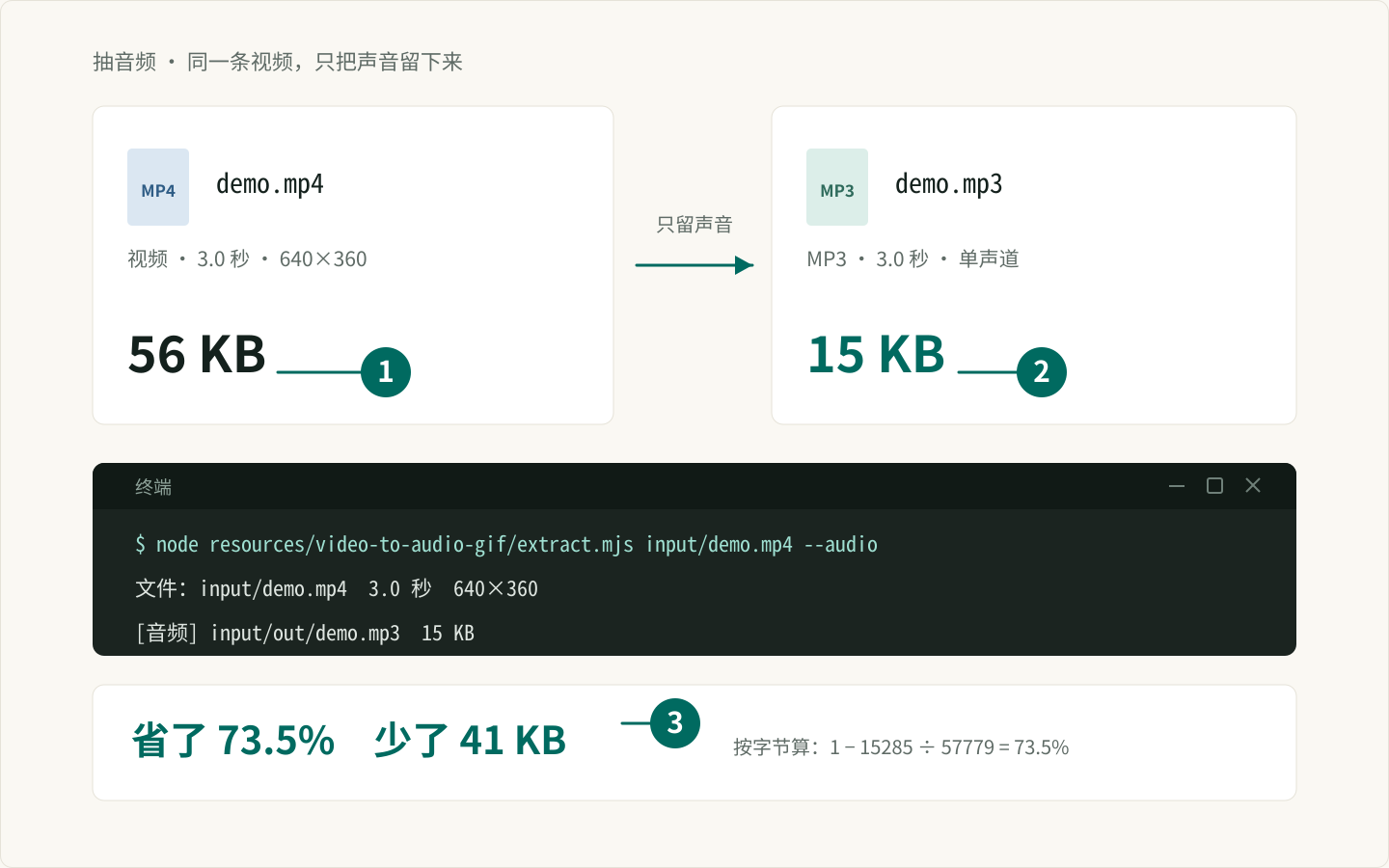
node resources/video-to-audio-gif/extract.mjs input/demo.mp4 --audio真实输出:
文件:input/demo.mp4  3.0 秒  640×360
[音频] input/out/demo.mp3  15 KB
三秒测试视频抽出 15 KB 的 MP3。如果是十分钟的播客,体积会到十几 MB,属正常。
截一段做 GIF
GIF 不建议整段转。先截 2–3 秒,宽度 480 就够了:
node resources/video-to-audio-gif/extract.mjs input/demo.mp4 --gif --start 0.5 --duration 2文件:input/demo.mp4 3.0 秒 640×360
[动图] input/out/demo.gif 231 KB 12 fps · 480 px 宽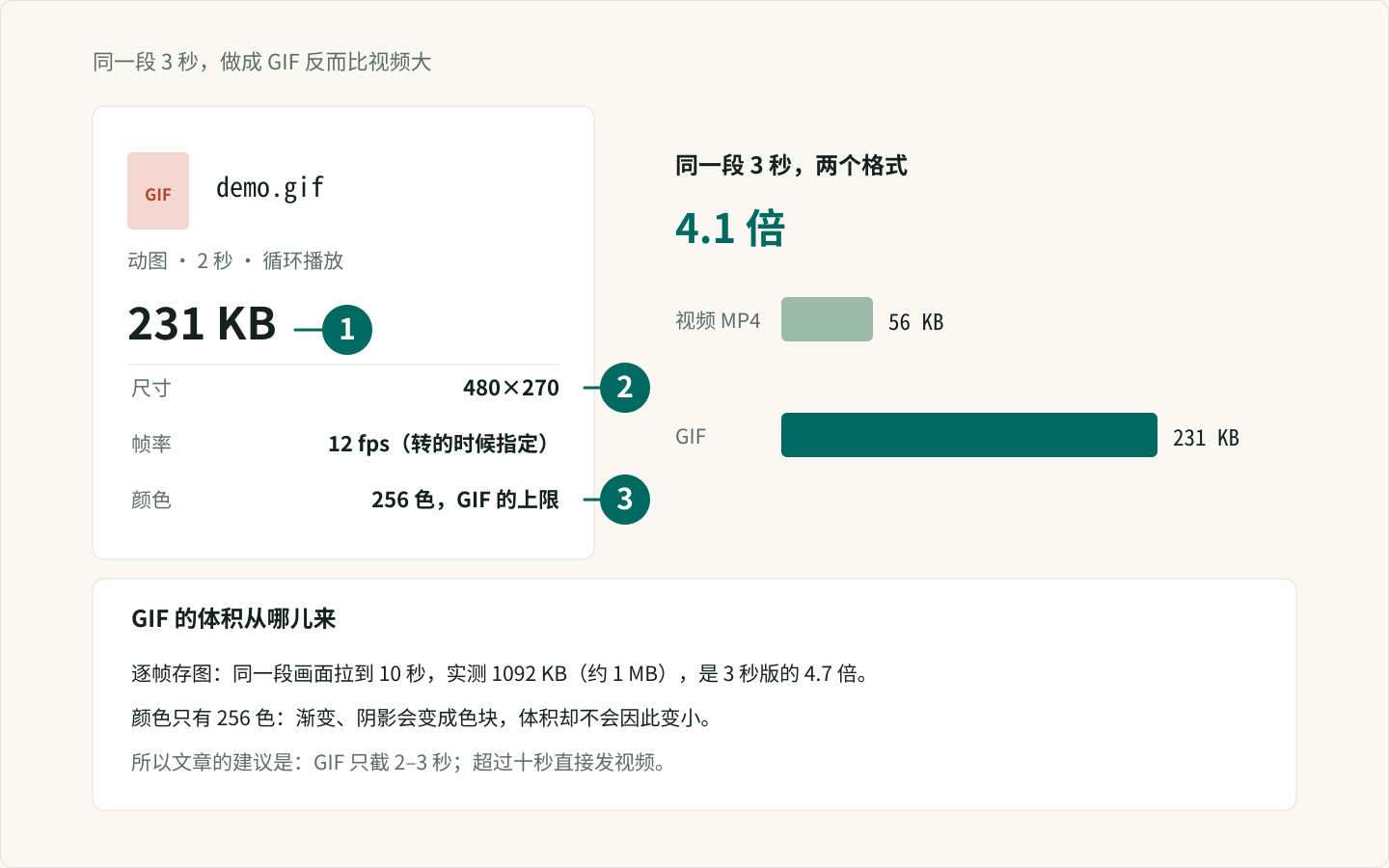
两个一起要就加两个开关:
node resources/video-to-audio-gif/extract.mjs input/demo.mp4 --audio --gif --start 0.5 --duration 2文件:input/demo.mp4 3.0 秒 640×360
[音频] input/out/demo.mp3 15 KB
[动图] input/out/demo.gif 231 KB 12 fps · 480 px 宽GIF 会先写一份临时调色板再合成,跑完自动删掉,out/ 里只留 .mp3 和 .gif。
参数怎么调
| 参数 | 默认 | 说明 |
|---|---|---|
--audio |
关 | 输出同名 MP3 |
--gif |
关 | 输出同名 GIF |
--start |
从 0 开始 | 从第几秒截 |
--duration |
到结尾 | 截几秒 |
--fps / --width |
12 / 480 | 动图流畅度和宽度 |
动图体积主要看三件事:时长、宽度、帧率。三秒 480px 是 231 KB;拉到十秒就会接近 1 MB。发聊天表情,360px 宽、10 fps 通常够。
常见坑
1. 竖屏视频转出来很高
scale=480:-1 固定宽度,高度按比例走。竖屏 1080×1920 会变成 480×853,体积比横屏大。竖屏动图把 --width 调到 360。
2. 想要声音,但只导出了 GIF
GIF 不存音频。发布时要么用 MP3 配图,要么直接发视频。两个格式不能塞进同一个文件。
3. 视频本身没有音轨
屏幕录制、无声素材很常见。脚本会提示「这个视频没有音轨」,加 --audio 会失败,去掉它只做 GIF。
4. 截取点差一两帧
--start 会先跳到附近关键帧,再解码丢掉前面的帧,所以不是逐帧精确。做表情包够用;要对齐台词,回剪辑软件。
下一步读什么
同一条视频还要发多个平台,看一条视频三个平台批量改尺寸、抽封面。
常见问题
GIF 为什么没有声音?
GIF 格式本身不存音频。要声音就同时加 --audio 生成 MP3,发布时再和动图配合使用。
转出来的 GIF 有几百 KB,算大吗?
3 秒、480px 宽的动图 231 KB 是正常范围。GIF 逐帧存图,时间一长体积涨得很快;超过十秒建议直接发视频。
视频没有音轨会怎样?
脚本会先提示「这个视频没有音轨」。仍然加 --audio 会失败,去掉 --audio 只做 GIF 就行。
截取的时间点不准?
--start 会从附近的关键帧开始解码,再丢掉前面的帧,通常差不到一帧。要逐帧精确,得改用剪辑软件。
每周一张复习表
每周分享一张实用复习表,不收钱不打扰,想走随时走
邮箱存在 Cloudflare KV 里,只用来发每周更新;任何时候写信到hello@genwozuo.com说「退订」就删掉。详见隐私政策。